
Microsoft Teams
Microsoft CorporationBusiness
4.697.03K Reviews
- Version
- 1416/1.0.0.2026183002
- Installs
- 500.00M
- Age Rating
- Everyone
Screenshots



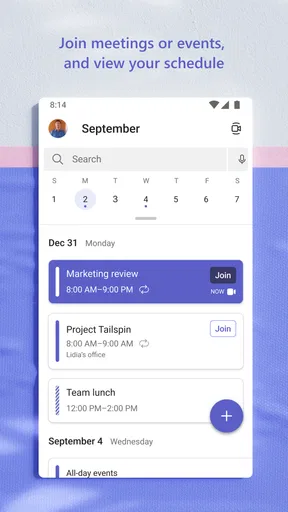
Our Review of Microsoft Teams
 Analysis by Appyee
When I’m deciding whether to use a work communication app, I start with a practical question: will it bring conversations and shared work together, or just give me another inbox to check? Microsoft Teams is aimed at people who want chats, meetings, and collaboration in one business-focused space. Microsoft Corporation makes it, and its wide reach—over 500 million installs and an average rating of 4.7 from around 8.4 million ratings—suggests it has become a familiar choice for many workplaces. Those figures tell me it is established, but the better test is whether its structure suits the way you actually work.
Getting Started with Teams
First off, let's talk about setup. Downloading and installing Microsoft Teams is a breeze, whether you're on Android or iOS. Once you're in, the interface is pretty intuitive, although there’s a slight learning curve if you're new to Microsoft's ecosystem. But don't worry, it’s nothing a few tutorial videos can’t fix. I’d also give myself time to learn how the organization I work with uses chats, channels, and meetings; Teams feels much clearer when those habits are consistent across a group.
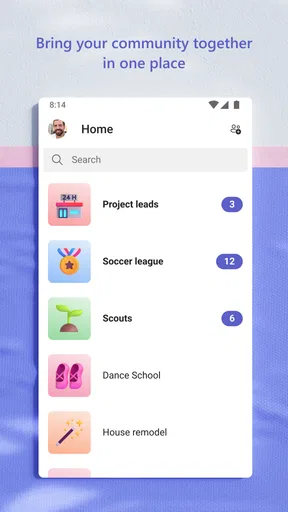
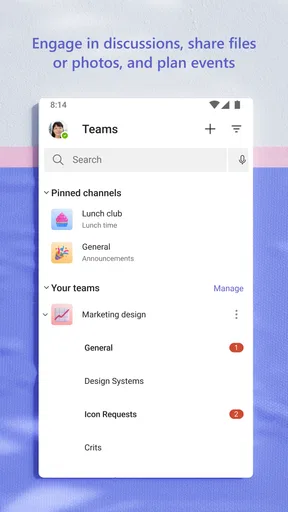
The app's design is sleek and functional. You’ll find all your chats, channels, and meetings neatly organized, making navigation a piece of cake. And let’s not forget about the integration with other Microsoft products—if you’re already using tools like Word or Excel, Teams makes it super easy to access and share files directly within the app. In day-to-day use, that matters most when a discussion needs to lead to a document someone can actually work on, rather than another attachment that gets lost in a long email thread.
Features That Stand Out
One of the things I love most about Teams is its video conferencing feature. Setting up a meeting is straightforward, and the video quality is top-notch. Plus, you’ve got options like screen sharing and background effects, which come in handy more often than you'd think. For a quick project check-in, I find screen sharing more useful than sending a sequence of screenshots: everyone can look at the same material while the group works through a question.
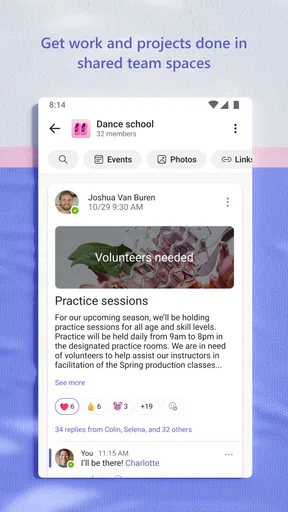
Another highlight is the chat functionality. It’s not just about messaging—you can also share files, create to-do lists, and even use GIFs and emojis to keep things lively. The app also supports threaded conversations, which helps keep discussions organized and easy to follow. My practical tip is to keep a channel conversation focused on a shared topic and use a direct chat for a one-to-one matter; mixing both styles indiscriminately can make it harder to find a decision later.
For those of you working on group projects, the app’s integration with Office 365 is a game-changer. You can collaborate on documents in real-time, and the auto-save feature is a lifesaver. No more losing work because you forgot to hit ‘Save’! The real advantage is less about opening a file inside a chat and more about keeping the document connected to the conversation that explains what needs changing. That can reduce the familiar cycle of emailing revised copies back and forth.
A realistic example is a small team preparing a presentation while working across different schedules. Someone can share the working file, leave a question where the group is already discussing the project, and use a meeting to settle a choice that would take too long to resolve through messages. A teammate who is away from a desk can still follow the conversation on a phone, while the person editing the document can continue from a computer. That workflow is useful when the group already agrees on where work belongs; without that agreement, the app can become a maze of parallel chats and channels.
Making Teams Work for You
Customization is another area where Teams shines. You can tweak notifications, change themes, and even set up bots to automate repetitive tasks. I found these features particularly useful for staying on top of my workload without feeling overwhelmed by constant alerts. I’d start by adjusting notifications around the channels that matter most, rather than letting every conversation demand attention. That small bit of housekeeping makes a busy workspace feel more manageable and helps distinguish an urgent request from routine chatter.
Teams also offers a mobile experience that mirrors its desktop counterpart. This means you can stay connected and productive whether you're at your desk or on the go. The app syncs seamlessly across devices, which is a huge plus for those of us who are constantly switching between phone and laptop. I see mobile as especially handy for checking context before a meeting, replying to a focused question, or keeping up with a shared task while away from a computer. For long document edits or sorting through a crowded workspace, I’d still rather use a larger screen.
Choosing the Right Kind of Workspace
Teams is a business app, and it makes the most sense when communication is tied to ongoing work: recurring projects, shared files, scheduled discussions, and groups that need a common place to coordinate. It is free to download, rated for Everyone, and its current version is 1416/1.0.0.2025224506. Some in-app purchases are offered, with listed item prices ranging from $9.99 to $129.99. I would check what access and tools your workplace expects before treating the app as a complete solution, since the usefulness of a shared workspace depends on how the organization has set it up.
The comparison with alternatives is less about declaring one app universally better and more about choosing the right shape of communication. A straightforward messenger can be a better fit for a family, club, or small group that mainly wants quick informal messages. A video-call-focused app may suit people who meet occasionally but do not need ongoing channels and shared work around those calls. Email remains useful for formal messages and communication with people outside a shared workspace. Teams has the edge when a group benefits from keeping conversations, meetings, and work materials close together, but its broader structure can feel excessive if all you need is a simple chat.
One trade-off worth considering is the cost of changing habits. Moving a group into Teams is not just installing an app; people need to know where to post updates, how to name or organize conversations, and which discussions belong in a channel rather than a private chat. If only some colleagues use it consistently, important information can still end up scattered across email and other messengers. I’d agree on a few basic conventions before moving an active project, then use them long enough for the workspace to become predictable.
The Bottom Line
Overall, Microsoft Teams is a solid choice for anyone looking to streamline their communication and collaboration tools into one app. It's packed with features that cater to both casual users and power users alike. While it might take a minute to get the hang of everything, the payoff is well worth it. I’d recommend it most readily to people whose work already involves Microsoft documents or a group that wants meetings and ongoing conversations in the same place. If your needs stop at lightweight messaging, a simpler app may feel more natural and take less effort to maintain.
So, if you're on the hunt for an app that can handle video calls, chat, and project management all in one place, give Teams a shot. You might just find it becomes an indispensable part of your daily routine. I would skip it if you have no shared work to organize, dislike notification-heavy environments, or need a tool that everyone you communicate with already uses. For a team willing to set a few clear habits, though, it can make the handoff from conversation to coordinated work feel much smoother.
Privacy and Permissions
See what permissions an app requests and how it handles your data.
- Identity
- find accounts on the device, add or remove accounts
- Contacts
- find accounts on the device, read your contacts, modify your contacts
- Location
- approximate location (network-based), precise location (GPS and network-based)
- Phone
- directly call phone numbers, read phone status and identity
- Photos/Media/Files
- read the contents of your USB storage, modify or delete the contents of your USB storage
- Storage
- read the contents of your USB storage, modify or delete the contents of your USB storage
- Camera
- take pictures and videos
- Microphone
- record audio
- Wi-Fi connection information
- view Wi-Fi connections
- Device ID & call information
- read phone status and identity
- Other
- view network connections, create accounts and set passwords, pair with Bluetooth devices, access Bluetooth settings, change network connectivity, full network access, change your audio settings, control Near Field Communication, run at startup, reorder running apps, draw over other apps, use accounts on the device, control vibration, prevent device from sleeping
Verdict
Strengths of Microsoft Teams
- Seamless integration with Office 365.
- Robust security and compliance features.
- Customizable notifications settings.
- Supports large-scale video conferencing.
- Wide range of third-party app integrations.
Limitations of Microsoft Teams
- Can be resource-intensive on older devices.
- Occasional sync issues with messages.
- Steep learning curve for new users.
- Limited customization for themes.
- Offline mode features are restricted.
Other Releases by Microsoft Corporation
View All
Microsoft OneDrive
Productivity4.6

Microsoft OneNote: Save Notes
Productivity4.6

Link to Windows
Productivity4.0

Microsoft PowerPoint
Productivity4.8
Similar Picks in This Category
View All
LinkedIn: Community & Network
LinkedIn3.8

Zoom Workplace
zoom.com4.1

Meta Business Suite
Meta Platforms, Inc.4.6

Webex Meetings
Cisco Systems, Inc.4.5

TeamViewer Remote Control
TeamViewer4.4

File Commander Manager & Vault
MobiSystems4.2
You May Also Like
View All


Frequently Asked Questions
What is Microsoft Teams and what are its main features?
Microsoft Teams is a collaboration platform that integrates with Microsoft Office 365. It offers features such as chat, video conferencing, file sharing, and integration with other Microsoft apps. It’s designed to facilitate teamwork and communication within organizations, providing a centralized hub for work and collaboration.
Is Microsoft Teams free to use, and what are the limitations of the free version?
Microsoft Teams offers a free version with basic features, including unlimited chat, built-in group and one-on-one audio or video calls, and 2 GB of file storage per user. However, the free version lacks some advanced features like scheduled meetings and administrative tools, which are available in paid plans.
How secure is Microsoft Teams, and what measures are in place to protect user data?
Microsoft Teams is designed with security and compliance in mind. It uses enterprise-grade security measures, including data encryption both in transit and at rest. The platform is compliant with standards such as ISO 27001, SOC 2, and GDPR, ensuring that user data is protected according to international standards.
Can Microsoft Teams integrate with other apps and services?
Yes, Microsoft Teams supports integration with a wide range of apps and services. It can connect with Microsoft apps like OneNote, SharePoint, and Planner, as well as third-party services such as Trello, Zoom, and Dropbox. These integrations help streamline workflows and enhance productivity.
What are the system requirements for running Microsoft Teams on mobile and desktop?
For desktop, Microsoft Teams can be run on Windows 10 and macOS 10.14 or later. Mobile users need devices running iOS 12.0 or later or Android 4.4 or later. Adequate internet connectivity is required for optimal performance, especially for video calls and file sharing functionalities.
